AWSコンソールに「本番環境」「開発環境」のような文字を表示するChrome拡張を作る
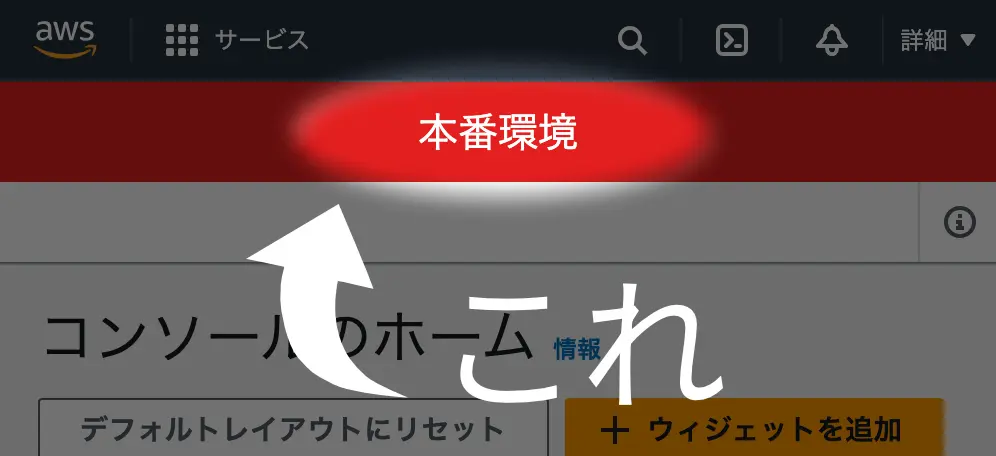
AWSアカウントを複数使い分けていると、時々どのアカウントを開いているか分からなくなるときがあります。
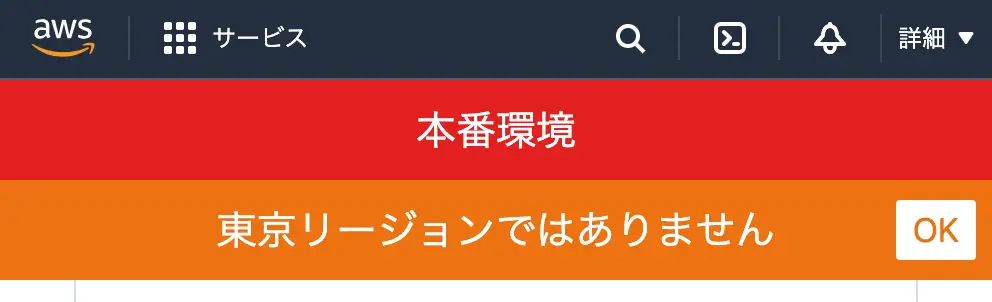
そのうち事故りそうな気がしたので、AWSコンソールの上部に、アカウントIDに応じて「本番環境」や「開発環境」のような文字列を表示するChrome拡張を作りました。
せっかくなので「◯◯環境」だけではなく、任意の文字を表示できるようにしつつ、背景色もアカウントごとに変えられるようにしました。
作る
必要なファイルは3つだけ。
bash
mkdir chrome-extension-aws-console-banner
cd chrome-extension-aws-console-banner
touch insert-banner.js manifest.json style.css
manifest.json
{
  "manifest_version": 3,
  "name": "AWS Console Banner",
  "description": "",
  "version": "1.0",
  "content_scripts": [
    {
      "matches": ["https://*.aws.amazon.com/*"],
      "css": ["style.css"],
      "js": ["insert-banner.js"]
    }
  ]
}
style.css
.aws-console-banner {
  font-family: -apple-system, BlinkMacSystemFont, Helvetica Neue,
    Hiragino Kaku Gothic ProN, 'ヒラギノ角ゴ Pro W6', sans-serif;
  display: flex;
  justify-content: center;
  align-items: center;
  font-size: 2rem;
  color: #fff;
  height: 50px;
}
insert-banner.js
// TODO: アカウントIDを書き換える。
//       外部公開することは想定していないので直書きしている。
const accountList = [
  { accountId: '000000000000', text: '開発環境', backgroundColor: '#1a52d6' },
  { accountId: '111111111111', text: '本番環境', backgroundColor: '#e31e1e' },
]

window.addEventListener('load', async () => {
  const accountId = await getAccountId()
  const account = accountList.find(a => a.accountId === accountId)
  if (account) {
    insertBanner({
      text: account.text,
      style: { backgroundColor: account.backgroundColor },
    })
  }
})

async function getAccountId() {
  // 表示されるまでラグがあるのでsleepを入れながら5回試す
  let menu
  for (let i = 0; i < 5 && !menu; i++) {
    menu = document.getElementById('menu--account')
    await new Promise(resolve => setTimeout(resolve, 2000))
  }

  const span =
    menu.firstElementChild.firstElementChild.firstElementChild.children[1]
  return span.textContent.replaceAll('-', '')
}

function insertBanner({ text, style }) {
  const div = document.createElement('div')
  div.classList.add('aws-console-banner')
  if (text) div.textContent = text
  Object.entries(style || {}).forEach(([k, v]) => (div.style[k] = v))

  getContainer().appendChild(div)
  resize()
  return div
}

function removeBanner(banner) {
  getContainer().removeChild(banner)
  resize()
}

function getContainer() {
  return document.getElementById('awsc-navigation-container')
}

function resize() {
  window.dispatchEvent(new Event('resize'))
}
インストール
- chrome://extensions のデベロッパーモードを on にする
パッケージ化されていない拡張機能を読み込むから作った拡張を選択して読み込む
おまけ
東京リージョン以外だったら、「東京リージョンではありません」と表示する機能を追加してみる。
style.css
+.btn-close-region {
+  display: block;
+  position: absolute;
+  right: 10px;
+  height: 30px;
+  width: 40px;
+  background-color: #fff;
+  color: #ec7211;
+  border-radius: 2px;
+  font-size: smaller;
+
+  border: none;
+  cursor: pointer;
+  outline: none;
+  padding: 0;
+  appearance: none;
+}
insert-banner.js
 window.addEventListener('load', async () => {
   const accountId = await getAccountId()
   const account = accountList.find(a => a.accountId === accountId)
   if (account) {
     insertBanner({
       text: account.text,
       style: { backgroundColor: account.backgroundColor },
     })
   }
+
+  // 東京リージョンではない場合、バナーを表示する
+  // S3のページ等では取れないが気にしない
+  const region = window.location.host.split('.')[0]
+  if (region !== 'ap-northeast-1') insertRegionBanner()
 })

+function insertRegionBanner() {
+  const text = '東京リージョンではありません'
+  const banner = insertBanner({ text, style: { backgroundColor: '#ec7211' } })
+
+  // 閉じるボタン
+  const closeBtn = document.createElement('button')
+  closeBtn.textContent = 'OK'
+  closeBtn.classList.add('btn-close-region')
+  closeBtn.addEventListener('click', () => removeBanner(banner))
+  banner.appendChild(closeBtn)
+}
表示サンプル